Creating a line using the editing tools
In some specific scenarios, you can only assign or use an event of the type Line, e.g. on the Property vs Path form. If such a line is not present in your solution, you can create one using the editing tools.
To create a line
- In the active view, make sure you have the object visualized on which you want to create a line.
- Open the Editing Tools (Workspace > Tools or Shift + F1).
- On the floating palette, select the Add Polyline Set icon. This will add a Polyline Set to the Data > Faults folder in the JewelExplorer.
- In the JewelExplorer, select the Polyline Set that is created.
- On the floating palette, select the Lock selected object option.
- In the Polyline Set Tools section on the floating palette, select Add Polyline (shortcut key: W)
- In your active view, click on the object to add the polyline nodes. Double-click to end the polyline.
- Close the Editing Tools.
- Open the Inspector (Workspace > Panes or Ctrl + F3).
- Select the Polyline Set you have just created in the JewelExplorer.
- In the Inspector, change the surface type to Line.
- Your line is now available in the JewelExplorer under Data > Lines > <name of your polyline set>
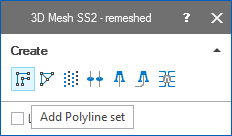
Use the add Polyline set tool to create a line click to enlarge
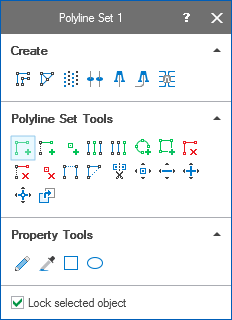
Activate the add Polyline tool click to enlarge
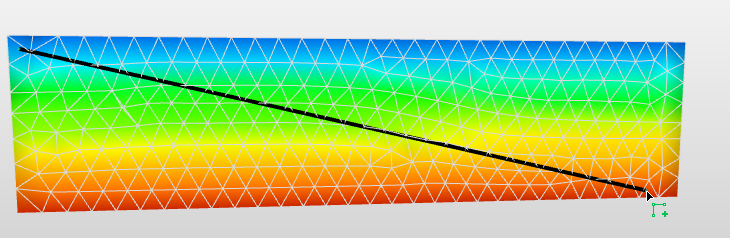
Draw the line on your object of interest click to enlarge
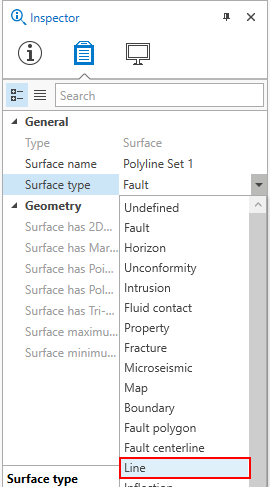
Change the Surface type to Line click to enlarge